On an iPhone, reminders reach only the n1lab you add to your Home Screen, and you turn them on there. In Safari, Settings says so: under Check-ins, Reminders shows Install first.
The pictures are from iOS 26.
-
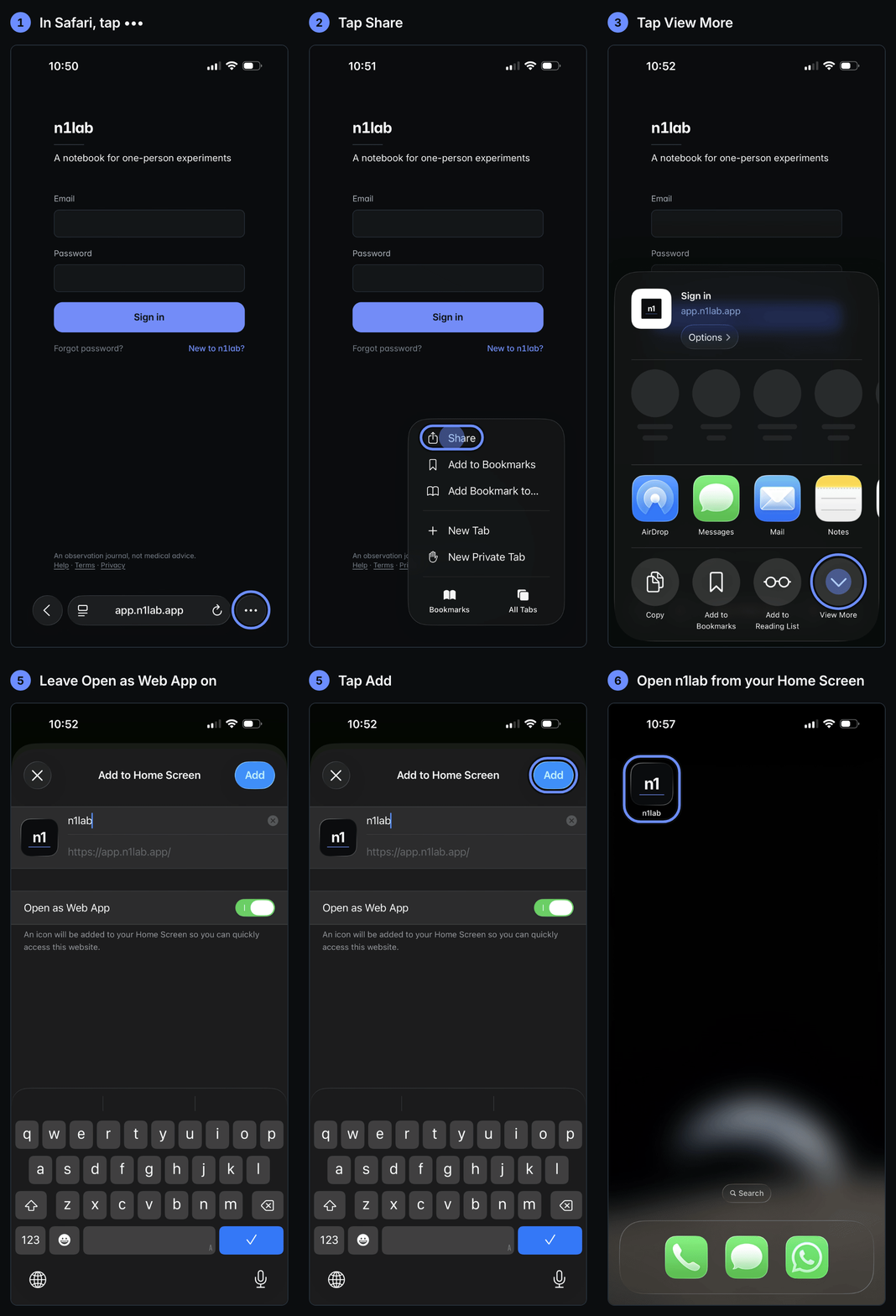
Open app.n1lab.app in Safari. Tap ••• at the bottom right.
-
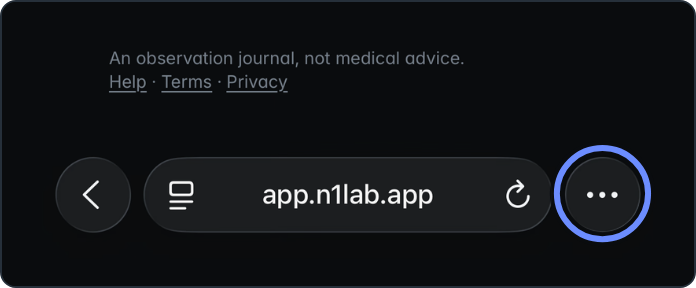
Tap Share.
-
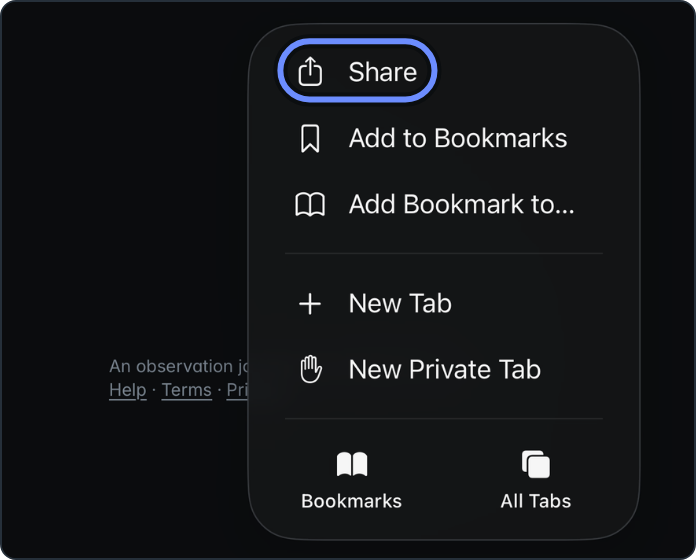
Tap View More.
-
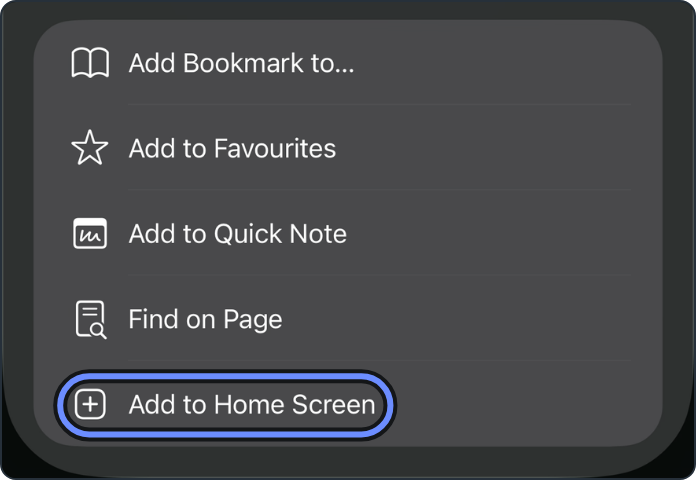
Tap Add to Home Screen, at the bottom of the list.
-
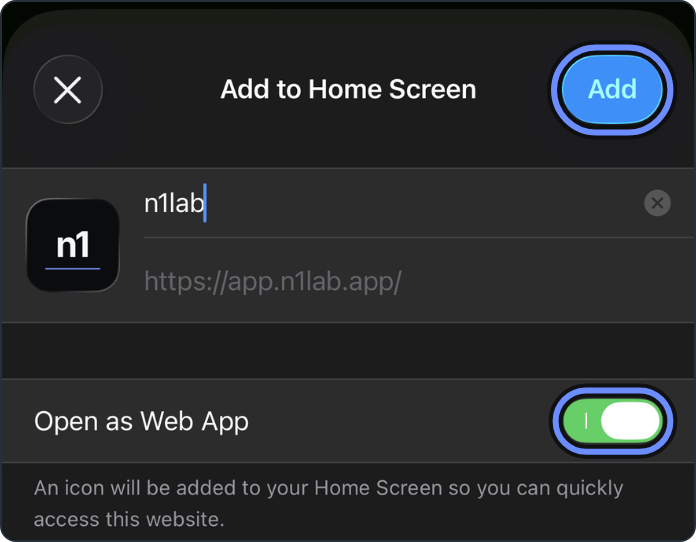
Make sure Open as Web App is on, then tap Add.
-
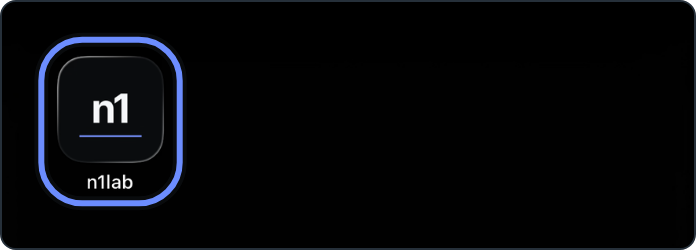
Open n1lab from its new icon. Sign in if it asks.
-
Tap More, then Settings. Under Check-ins, tap Morning, Evening or Food reminder, and set its Reminder to On. Allow notifications when your iPhone asks.
If your Safari looks different, find Add to Home Screen under Share. On another phone, use your browser's menu to add n1lab to your home screen.